

Why Setup Order Matters
A new computer is a blank slate, and the order in which you configure it has a real effect on long-term stability and security. Connecting to the internet before patching the system, or migrating files before removing bloatware, can introduce problems that become harder to untangle over time. If you're still weighing which type of machine to buy, our guide to choosing between a desktop and a laptop covers the key trade-offs. For a broader primer on how computers work, the plain-language guide to personal computers is a useful starting point before diving into setup.
The steps below walk through setup in the sequence that minimizes risk and creates the cleanest foundation. Gather what you need first, then work through each stage in order.
What you will need
External hard drive or USB flash drive
Used to transfer files from your old computer and to store a backup before migration begins.
Your Wi-Fi network name and password
Required during initial setup to connect to the internet and run system updates.
Microsoft or Apple account credentials
Needed to sign in to your operating system account and sync settings across devices.
List of software you use regularly
Helps you reinstall only what you actually need rather than copying over old clutter.
Step-by-Step: Setting Up Your New Computer
Follow these steps from first boot through your first full backup. Each stage builds on the last, so completing them in order produces the most stable result.
Back Up Your Old Computer First
Before transferring anything from your old machine, create a full backup of it - either to an external drive or a cloud service. Migration steps can occasionally overwrite files or expose gaps you didn't know existed. Having a confirmed backup means you have a safety net if something goes wrong during the transition.
Complete the initial setup wizard
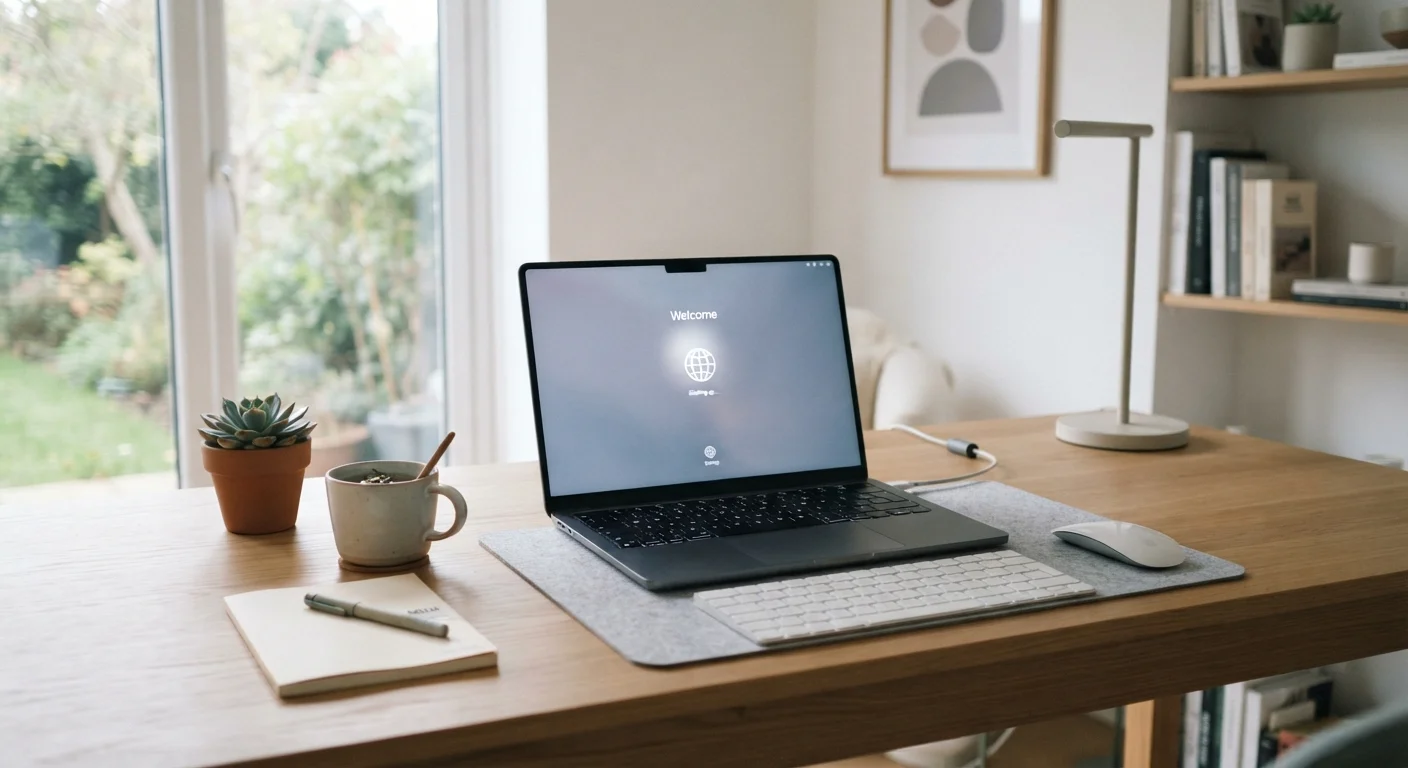
When you power on a new PC or laptop for the first time, the operating system walks you through a setup wizard. Follow the prompts to select your language and region, connect to Wi-Fi, and sign in with your Microsoft account (Windows) or Apple ID (macOS). If you prefer not to link a cloud account during this step, both systems allow you to create a local account instead - though some features like sync and recovery work better with a cloud account attached.
Run all available system updates
Before installing any software or moving files, update the operating system. On Windows, go to Settings > Windows Update and select Check for updates. On macOS, open System Settings > General > Software Update. Updates frequently include security patches that close vulnerabilities present in the version that shipped from the factory. Restart when prompted, then check for updates again - it sometimes takes two or three rounds to reach fully current status.
Remove pre-installed software you don't want
Most new computers arrive with trial applications, manufacturer utilities, and bundled apps you may never use - collectively called bloatware. On Windows, open Settings > Apps > Installed apps and uninstall anything unfamiliar or unwanted. On macOS, pre-installed apps are more limited, but you can delete most third-party additions by dragging them to the Trash. Clearing this out early reduces background activity and keeps your app list easier to manage.
Install the software you actually use
Rather than migrating an old software environment wholesale, treat this as an opportunity to reinstall only what you genuinely need. Download applications directly from their official websites or from the Microsoft Store or Mac App Store. Common essentials include a web browser, a PDF reader, productivity apps, and any communication tools you rely on. Keeping the software list lean from the start makes the system easier to maintain.
Transfer your files in organized batches
Connect your external drive or sign in to your cloud storage service and begin moving files over. Work in categories - documents first, then photos, then any project folders - rather than copying everything at once. This approach lets you verify each category arrived intact before moving on. Avoid dragging your old desktop or Downloads folder directly; instead, sort through it and bring over only what you still need.
Set up a folder structure and verify your backup
Once your files are transferred, organize them into a clear folder hierarchy before daily use begins. After that, confirm your backup strategy is working going forward - whether that's an automatic cloud backup (such as OneDrive on Windows or iCloud on macOS) or a scheduled external drive backup. Check that the backup ran at least once successfully before considering the setup complete.
Create a Simple Folder System Early
Rather than letting files pile up on the desktop or in Downloads, set up a handful of top-level folders before you start moving files over - for example, Documents, Photos, Work, and Personal. A structure established on day one is far easier to maintain than one built retroactively around thousands of existing files.
Bloatware Can Affect Performance Noticeably
Many new PCs and laptops ship with trial software, browser toolbars, or manufacturer utilities that run silently in the background. These programs consume memory and slow startup times. Review what's installed under Settings > Apps and remove anything you didn't choose to install. When in doubt, search the program name before deleting it.
The content on this site is for informational purposes only and is not a substitute for professional advice. Always consult a qualified professional for guidance specific to your situation.