

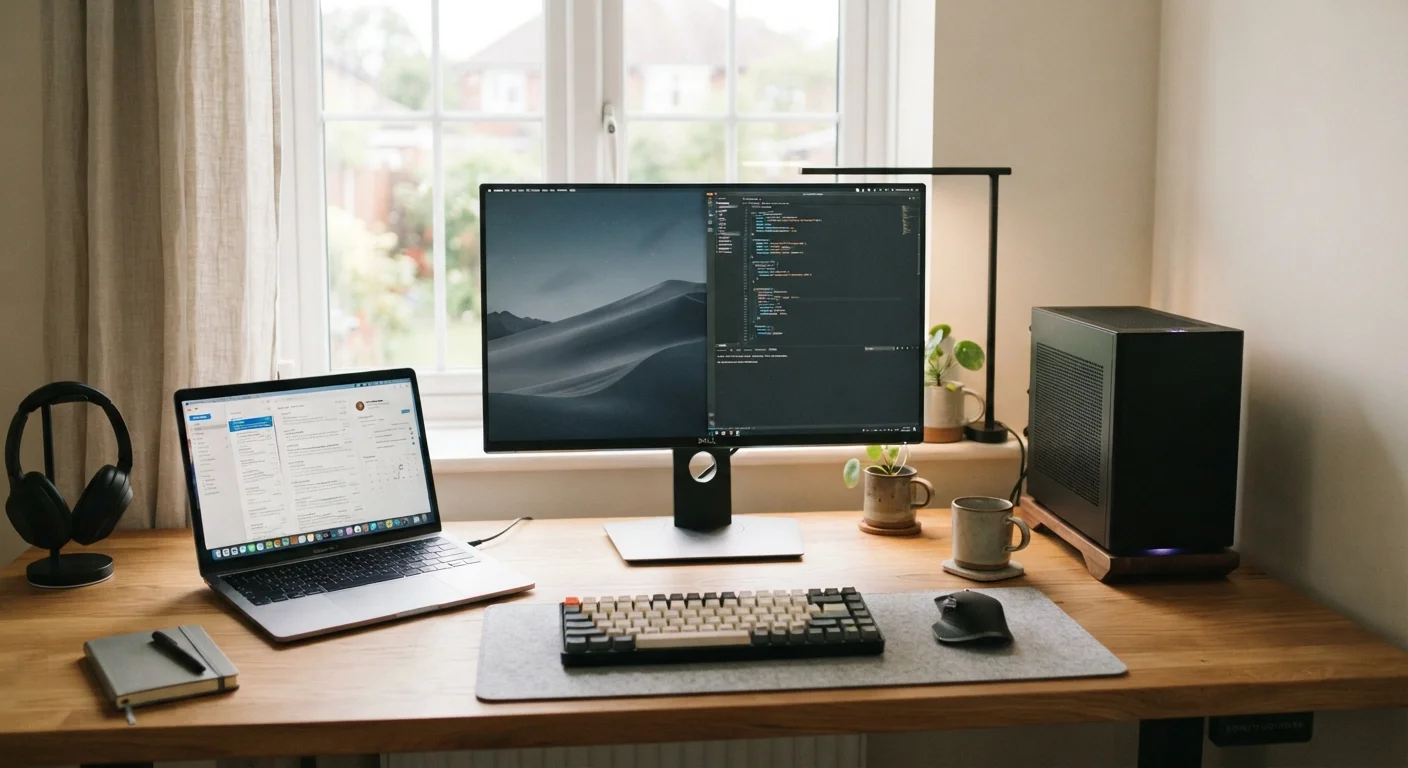
Option A
Desktop Computer
The high-performance, stay-at-home powerhouse.
Best for: Users who work from a fixed location and prioritize raw performance, large displays, and long-term upgradeability.
Option B
Laptop Computer
The flexible, all-in-one machine that goes where you go.
Best for: Users who need a single device that works at home, in the office, at school, or on the road.
What Actually Separates a Desktop from a Laptop
At their core, desktops and laptops run the same types of software and handle the same everyday computing tasks. What separates them is physical form - and that form creates real, meaningful trade-offs that ripple into performance, longevity, and daily convenience.
A desktop is a computer whose components live inside a separate tower or case. It connects to a standalone monitor, keyboard, and mouse. It draws power from a wall outlet continuously and is designed to sit in one place.
A laptop integrates all of those pieces - processor, storage, display, keyboard, trackpad, speakers, and battery - into a single clamshell unit. That integration is what makes portability possible, but it also introduces constraints around repairability and long-term upgrades.
If you're also weighing which operating system suits your workflow, our comparison of Windows and macOS explores how those platforms differ in everyday use.
Performance, Power, and Thermal Management
Desktop computers have a consistent edge in raw performance, and the reason comes down to physics. A tower case has room for larger processors, more powerful dedicated graphics cards (GPUs), and substantial cooling systems - fans, heat pipes, and sometimes liquid cooling. That means a desktop can sustain peak performance during long, demanding tasks without slowing down due to heat.
Laptops must fit all their components into a thin chassis, which limits the size of cooling systems. Under sustained heavy workloads - extended video exports, large compilations, complex 3D rendering - many laptops reduce processor speed (a process called thermal throttling) to avoid overheating. Thinner laptops tend to throttle more aggressively than thicker, more ventilated models.
For everyday tasks like web browsing, document editing, video calls, and streaming, most modern laptops perform perfectly well. The gap between desktops and laptops shows up most clearly under sustained, intensive workloads.
~70%
Share of US laptop sales vs. desktop
Laptop units have consistently outsold desktops in the US consumer market for over a decade, reflecting a broad shift toward portable computing.
3-5 years
Typical useful lifespan for a consumer laptop
Industry analysts generally cite three to five years as the average practical lifespan for a consumer-grade laptop before performance becomes limiting.
2-4×
Cooling surface area advantage of desktops
Desktop tower coolers can be several times larger than laptop thermal systems, enabling sustained performance under demanding workloads.
If you notice your current machine struggling under load, signs your computer is being pushed past its limits can help you diagnose what's happening.
Upgradeability and Long-Term Cost
One of the most practical differences between desktops and laptops is how much you can modify them after purchase.
Desktop towers are generally designed to be opened. RAM (the memory your computer uses to run applications simultaneously) can often be added or swapped. Storage drives are usually replaceable or expandable. Graphics cards in many desktop models can be upgraded independently. This means a well-chosen desktop can be incrementally improved over several years rather than fully replaced.
Most laptops, by contrast, have components that are soldered directly to the motherboard - meaning they cannot be swapped out after purchase. Some laptops allow RAM or storage upgrades, but this varies significantly by model, and the trend in recent years has moved toward sealed designs. Before assuming a laptop is upgradeable, it's worth researching the specific model.
For a deeper look at when upgrading makes more sense than replacing, see our guide on upgrading vs. replacing a computer. Storage type also plays a role in how a machine feels over time - our SSD vs. HDD explainer covers that difference clearly.
| Criterion | Desktop | Laptop |
|---|---|---|
| Portability | Stationary; not designed to move | Fully portable, battery-powered |
| Performance per dollar | Generally higher | Slightly lower for equivalent spend |
| Upgradeability | High - most components replaceable | Low to moderate; often sealed |
| Cooling capacity | Superior; larger fans and heatsinks | Limited by thin chassis design |
| Display | Separate monitor; any size you choose | Built-in; typically 13-17 inches |
| Setup footprint | Larger; requires desk and peripherals | Compact; self-contained |
| Power source | Wall outlet only | Battery + outlet |
| Repair access | Easier; modular design common | Harder; many parts are soldered |
Portability, Setup, and Everyday Practicality
If your work or lifestyle requires moving between locations, a laptop's advantages become hard to overstate. A laptop is the only option that lets you close a lid and carry a complete computing environment with you - no packing peripherals, no finding outlets before you can start.
Desktops, meanwhile, require a dedicated and permanent setup: a desk, monitor, power access, and cable management. They're not impossible to relocate, but doing so is a project, not a routine.
Laptops also include a built-in battery, which means brief power outages don't interrupt your work. They can run for hours on battery alone, a critical advantage for travel or situations where outlets are scarce.
Docking Stations Narrow the Gap
A laptop connected to a docking station can drive a full-size external monitor, wired keyboard, mouse, and multiple peripherals - effectively turning a portable machine into a desk setup when needed. This setup appeals to users who want portability on the road but a full workstation experience at home. The trade-off is the added cost of the dock and peripherals.
Laptop connectivity has expanded considerably in recent years. If you're concerned about ports and what you can plug in, our reference on laptop ports and what they do covers USB-A, USB-C, HDMI, Thunderbolt, and more. And if you choose a laptop, habits that keep a laptop running well can help you protect that investment over time.
The content on this site is for informational purposes only and is not a substitute for professional advice. Always consult a qualified professional for guidance specific to your situation.