

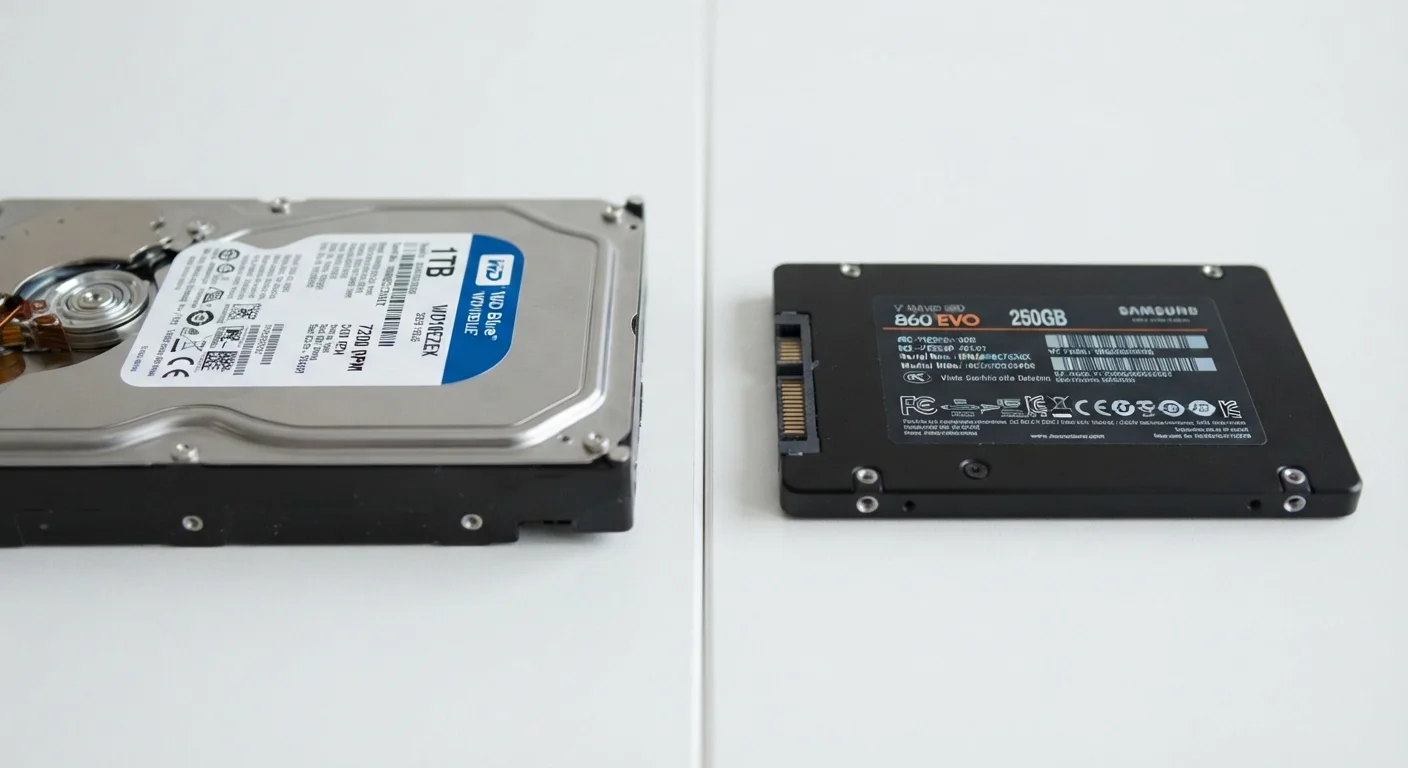
Option A
HDD (Hard Disk Drive)
The proven, high-capacity traditional option.
Best for: Users who need large amounts of storage at a lower cost and are less sensitive to speed.
Option B
SSD (Solid-State Drive)
The faster, more durable modern alternative.
Best for: Users who prioritize speed, responsiveness, and reliability in daily computing tasks.
What Makes Them Different at the Core
Every computer needs somewhere to keep your files, your operating system, and your applications when the power is off. Both HDDs and SSDs do that job - but the technology inside each one is completely different, and that difference affects nearly everything you notice when using a computer.
An HDD (Hard Disk Drive) works by spinning magnetic platters at high speed while a tiny read/write head moves across the surface to find or record data. Think of it like a record player reading a vinyl disc, except the disc spins many thousands of times per minute. The mechanical nature of this design means there's a small physical delay every time your computer needs to retrieve information.
An SSD (Solid-State Drive) contains no moving parts at all. Instead, it stores data on interconnected flash memory chips - the same basic technology used in USB thumb drives and smartphones. Because data is accessed electronically rather than mechanically, retrieval is nearly instantaneous by comparison. To understand how storage fits alongside other specs, see what RAM, storage, and CPU speed really mean for everyday use.
| Criterion | HDD | SSD |
|---|---|---|
| Technology | Spinning magnetic platters | Flash memory chips |
| Typical boot time | 45-90 seconds | 10-20 seconds |
| Moving parts | Yes | No |
| Shock resistance | Lower | Higher |
| Storage cost per GB | Generally lower | Generally higher |
| Noise level | Audible spinning/clicking | Silent |
| Common capacity range | 500GB - 8TB | 128GB - 4TB |
Speed, Durability, and Real-World Feel
The mechanical gap between these two drive types translates directly into how a computer behaves day to day. A machine equipped with an SSD typically starts up in under 15 seconds. The same machine running an HDD might take a minute or more. Application launches, file transfers, and even web browsing can all feel more immediate on an SSD because the system isn't waiting for a platter to spin to the right position.
5-10×
Typical SSD speed advantage over HDD
Sequential read speeds for mainstream SSDs commonly reach 500MB/s or more, while typical HDDs top out around 80-160MB/s.
~10ms
Average HDD data access (seek) time
SSD random access times are measured in fractions of a millisecond, making the gap significant for tasks involving many small files.
Durability is another practical distinction. Because HDDs have spinning components, they're more vulnerable to damage from drops or sudden movement - especially while a file is being read or written. SSDs, having no mechanical parts, are considerably more resilient to physical shock. This is a meaningful consideration for laptop users who work on the go.
Noise and heat are also affected. HDDs produce a faint spinning sound and generate more heat under load. SSDs run silently and typically cooler. If you're comparing computer form factors where these factors matter, it's worth reading about desktop vs. laptop trade-offs alongside storage choices.
Capacity, Cost, and When Each Makes Sense
HDDs have historically offered much more storage per dollar than SSDs. A 2TB (terabyte) hard disk drive remains less expensive than a 2TB SSD, which makes HDDs a practical choice when raw storage volume is the priority - for instance, archiving home video, storing large music libraries, or keeping extensive photo collections offline.
SSD prices have fallen steadily over time, and the gap has narrowed, but HDDs still hold an advantage at the high-capacity end of the market. For most everyday laptop and desktop users, though, 256GB to 512GB of SSD storage is sufficient for the operating system, core applications, and a reasonable personal file collection. Files that don't need to live on your device at all are another matter - see where cloud and local storage differ for a clear breakdown of that trade-off.
Storage Type vs. Storage Amount Are Separate Choices
Choosing between an SSD and an HDD is about the type of drive, not how much space it provides. Both come in a range of capacities. The right amount of storage depends on your habits - something explored in detail for mobile devices in our guide on how much smartphone storage you actually need, with similar logic applying to computers.
Some computers use a hybrid approach: a smaller SSD holds the operating system and frequently used apps, while a larger HDD handles bulk storage. This setup can offer a middle ground between speed and capacity, though it adds complexity compared to a single-drive system.
The content on this site is for informational purposes only and is not a substitute for professional advice. Always consult a qualified professional for guidance specific to your situation.