

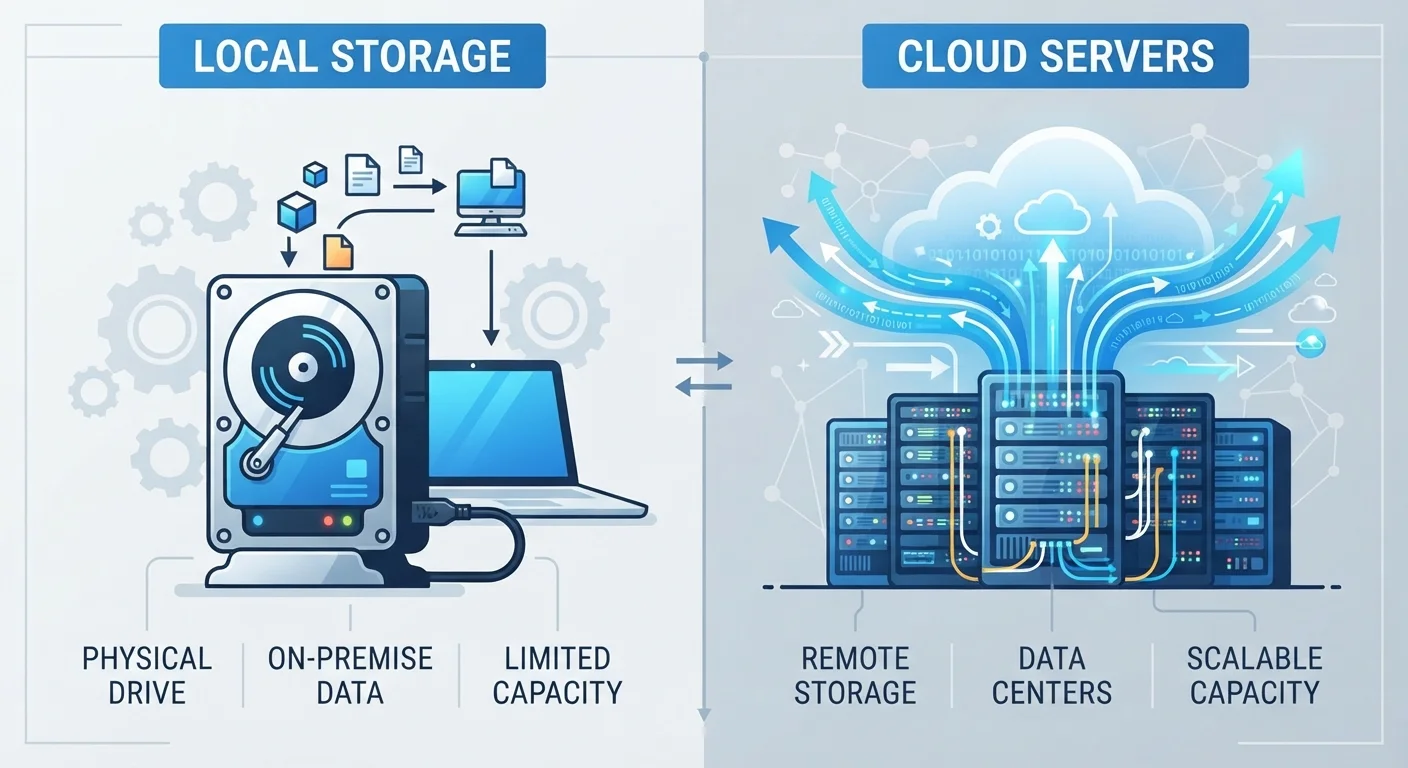
What Local Storage Actually Means
When you save a file to your computer's desktop or Documents folder, it goes onto the device's internal drive - an SSD or traditional hard disk. That drive is physically inside your machine. The file stays there whether you're online or offline, and no third party is involved in storing or retrieving it.
External drives, USB flash drives, and memory cards are also forms of local storage. They operate the same way - the data lives on hardware you physically possess. See our explainer on what storage actually does inside a computer for a broader look at how this fits into your machine's overall performance.
The key advantage of local storage is independence: no subscription, no internet requirement, and no company policy standing between you and your data. The risk is equally straightforward - if the hardware fails, is lost, or is damaged, those files can be gone.
What Cloud Storage Actually Means
Cloud storage works by uploading your files to servers in a data center - often thousands of miles away - operated by a company like a cloud service provider. When you open a file from the cloud, it travels over the internet to your device. The file doesn't permanently live on your computer; it lives on that company's infrastructure.
Services of this kind are common across smartphones, tablets, and computers. Many operating systems now default to saving certain files directly to cloud folders, which can cause confusion about where data actually is at any given moment.
~60%
US adults using cloud storage regularly
Pew Research Center surveys indicate a majority of US adults store data or files online through cloud-based services.
3-2-1
Recommended backup copies rule
The 3-2-1 backup strategy - three copies, two local media types, one off-site - is a widely cited guideline among IT professionals and data recovery experts.
One meaningful benefit is accessibility: log in from any device with internet access and your files are there. Another is built-in redundancy - reputable providers store multiple copies of your data across different servers, reducing the chance of permanent loss from a single hardware failure.
Key Differences That Affect Everyday Use
Understanding how these two approaches differ in practice helps you make smarter decisions about where to save specific types of files.
- Internet dependency: Local files load instantly with no connection needed. Cloud files require bandwidth and can be slow or inaccessible on a poor connection.
- Device switching: Cloud storage shines here - open the same file on your phone, laptop, or work computer seamlessly. Local storage is tied to the device it's on unless you physically move the drive.
- Privacy and control: Local storage gives you full control. Cloud storage is governed by a provider's terms of service; those terms define how your data is handled, backed up, and potentially shared.
- Cost structure: Local storage is a one-time hardware cost. Cloud storage usually starts free at limited capacity, then shifts to a recurring subscription.
Check Where Your Files Are Actually Saving
Many operating systems quietly default new files to a cloud-synced folder without making that obvious. Open your settings or file manager and confirm whether your Documents or Desktop folder is local-only or cloud-synced. Knowing which is which prevents surprises when you work offline or switch devices.
For a deeper look at the hardware differences behind local storage itself, the comparison between SSDs and traditional hard drives explains how the physical medium affects speed and reliability.
Building a Reliable Storage Strategy
Neither local nor cloud storage is a complete solution on its own. A widely referenced data protection principle - often called the 3-2-1 rule - suggests keeping three copies of important data: two on different local media types, and one stored off-site (which cloud storage fulfills naturally).
In practical terms, this might mean your files live on your computer's internal drive, are backed up to an external drive, and also sync to a cloud service. If your laptop is stolen or your hard drive fails, the cloud copy survives. If your cloud account is compromised or the service shuts down, your local copies remain intact.
Good file organization reinforces whichever storage setup you choose. Consistent file management habits make it much easier to verify that your backups are current and that nothing critical is living in only one place.
Frequently Asked Questions
Without an internet connection, you generally cannot access cloud-only files. Some services offer an offline sync option that keeps a local copy on your device, which remains available without connectivity. Enabling offline sync for critical files is a practical workaround.
Reputable cloud providers use encryption to protect files in transit and at rest, but your data resides on servers you do not control. Providers' privacy policies govern how they handle your data, so reviewing those terms matters. For sensitive documents, local storage or an encrypted external drive may offer more direct control.
Yes - using both is actually the most reliable approach. Many people keep working files on local storage for speed and offline access, while cloud storage serves as an automatic off-site backup. This combination protects against both device failure and accidental deletion.
It depends on how your cloud service is configured. If files are set to be cloud-only (not synced locally), they are removed from your device and stored remotely, freeing up local space. If syncing is enabled, a copy stays on your device, using local storage as well.
Most services offer a small amount of free storage, often between 5 GB and 15 GB, before requiring a paid subscription. Plans are typically billed monthly or annually, and costs scale with the amount of storage you need. Local storage has no recurring cost after the initial hardware purchase.
The content on this site is for informational purposes only and is not a substitute for professional advice. Always consult a qualified professional for guidance specific to your situation.