

Why File Clutter Builds So Quietly
Digital clutter doesn't announce itself. Unlike a messy desk you can see from across the room, disorganized files hide inside folders and rarely cause obvious problems - until the moment you urgently need something and can't find it. By then, years of downloads, duplicates, and vaguely named documents have piled up.
The good news is that preventing this mess requires less effort than cleaning it up after the fact. A handful of consistent habits - applied from the start - keep your files easy to navigate without requiring any major reorganization projects. This is the same logic behind organizing a home from the ground up: small, repeatable systems beat occasional overhauls every time.
Cloud vs. Local: Know Where Files Live
Files saved to a cloud service like Google Drive or OneDrive behave differently from files stored directly on your hard drive. Cloud files may not be accessible offline, and some services only keep local copies of recently used items. See our guide to cloud and local storage for a fuller breakdown of how each option works.
The Core Practices That Make the Biggest Difference
File management doesn't require specialized software or advanced technical knowledge. The practices below work on any operating system - Windows, macOS, or Linux - and apply equally whether your files live locally or in the cloud.
Build one folder structure and stick to it from the start.
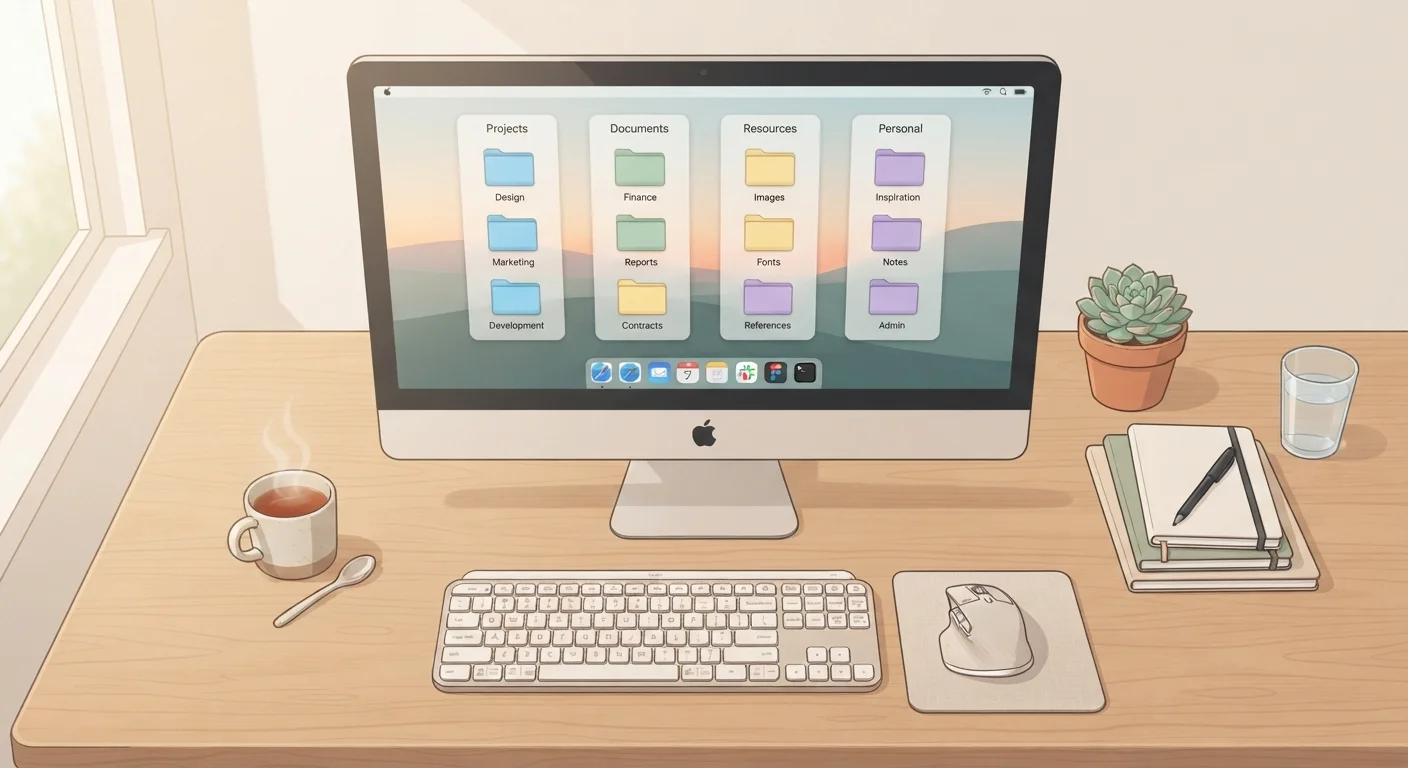
Inconsistent organization forces you to remember where you put things each time, which defeats the purpose of organizing at all. A single hierarchy - such as top-level folders by category (Work, Personal, Finance, Photos) with subfolders inside - removes that guesswork permanently.
Name files descriptively, not generically.
Names like 'Document1' or 'Scan_03' force you to open every file to identify it. A clear name tells you what's inside before you click, which speeds up every future search.
Use a consistent date format in file names for anything time-sensitive.
Files sort alphabetically by default, so a date formatted as YYYY-MM-DD (year first) keeps documents in true chronological order automatically. Mixed formats like '04-2024' and 'April2024' create sorting chaos.
Schedule a monthly five-minute folder sweep.
Downloads folders and desktops accumulate clutter fast. A brief monthly sweep - deleting what you no longer need and filing what you do - prevents that pile from becoming a project of its own.
Keep at least two copies of important files in separate locations.
Hard drives fail, laptops get lost, and accidental deletions happen. Having a second copy - whether on an external drive or a cloud service - means one loss doesn't become a permanent loss.
Delete duplicates before they multiply.
Duplicate files waste storage space and create confusion about which version is current. Most operating systems include search tools that can surface duplicate file names; free third-party duplicate finders are also widely available.
Start Small: Quick Wins You Can Do Today
If your current file situation already feels out of hand, don't try to fix everything at once. Pick one area - your desktop, your Downloads folder, or one work project - and apply the naming and folder principles there first. Progress compounds quickly once a structure exists. For a parallel approach to tackling accumulated clutter in manageable pieces, the room-by-room decluttering guide applies the same incremental logic to physical spaces.
Making the Habits Stick
“A place for everything, and everything in its place. The same principle that keeps a physical workspace functional applies just as well to a digital one.”
— Benjamin Franklin, Founding Father, author, and noted advocate of organized habits
The hardest part of file organization isn't learning the right system - it's doing the small things consistently. Renaming a file takes five seconds at the moment you save it. Hunting through fifty 'Document' files three months later can take far longer.
If your computer is showing other signs of strain - slow performance, full storage warnings, or sluggish behavior - file accumulation may be a contributing factor. Our article on signs you're pushing your computer past its limits explains how to read those warning signals. And if you're curious about common misconceptions that affect how people use their computers day-to-day, computer myths that trip up everyday users is worth a read.
Consistent naming, a simple folder hierarchy, regular light-touch maintenance, and reliable backups aren't complicated - but they do need to become habits rather than one-time fixes.
The content on this site is for informational purposes only and is not a substitute for professional advice. Always consult a qualified professional for guidance specific to your situation.