

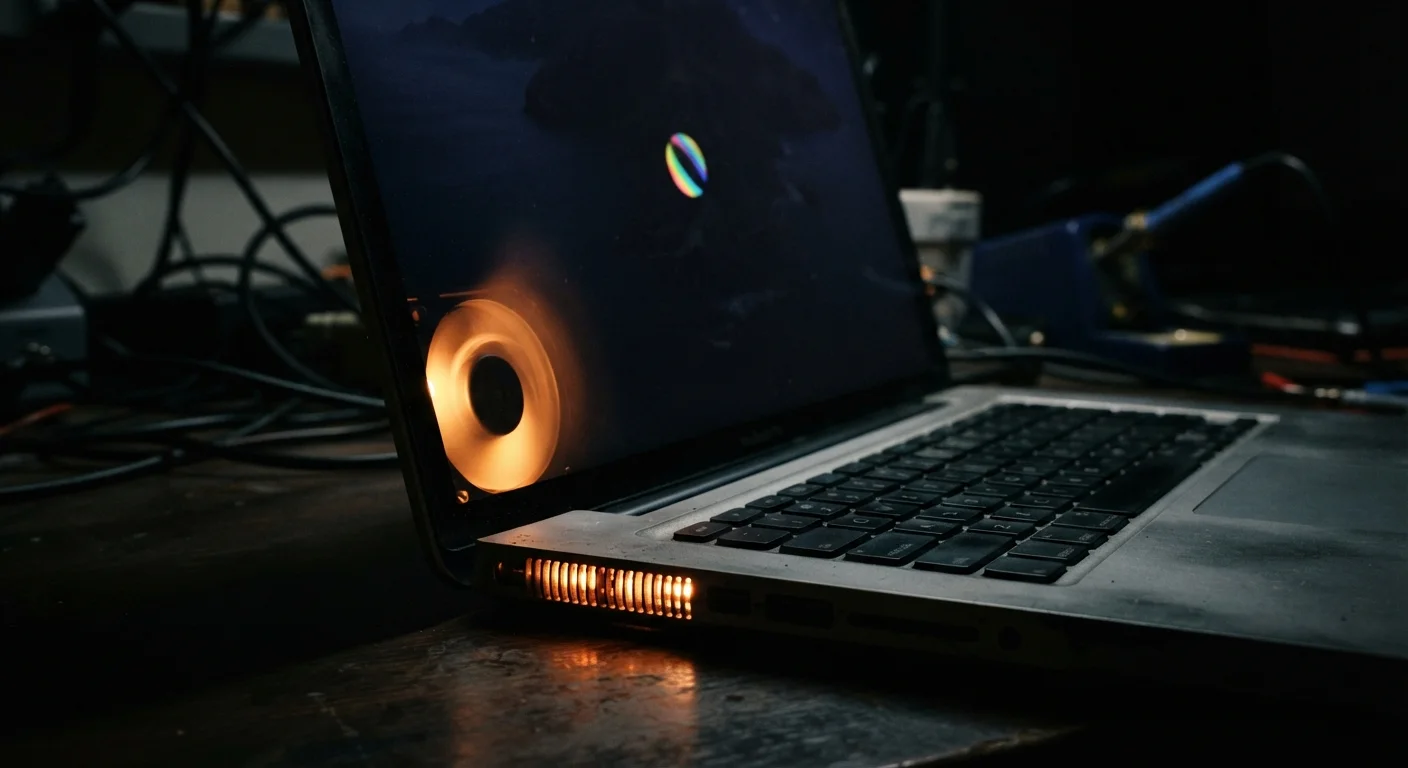
What Computer Overload Actually Looks Like
Your computer communicates when it's struggling - not in words, but through a predictable set of behaviors that most people chalk up to bad luck or aging hardware. Understanding what these signals mean helps you respond effectively rather than simply putting up with a frustrating machine.
Overload doesn't always mean your computer is broken. It usually means the demands placed on it - by software, files, or how it's being used - exceed what its components can handle smoothly. The good news: once you can name the symptom, you can usually trace it to a cause.
Heat Damage Is Cumulative
Repeated overheating doesn't just cause temporary shutdowns - it gradually degrades internal components like the CPU, motherboard, and battery over time. Keeping vents unobstructed, using your laptop on hard flat surfaces rather than soft ones like beds or couches, and occasionally cleaning out dust from vents can meaningfully reduce thermal stress on your machine.
The Warning Signs Worth Paying Attention To
Fan noise that won't quit. Your computer's cooling fan ramps up when internal temperatures rise. Occasional noise during a video call or large file download is normal. But if the fan runs loudly during basic tasks - browsing, writing a document - your processor is likely working harder than it should be. Accumulated dust blocking vents is a common culprit and is worth checking before assuming something is wrong with the hardware itself.
Apps that freeze or take forever to open. When your system doesn't have enough available RAM (random-access memory) to juggle open applications, it starts pulling data from your storage drive instead - a much slower process. The result is apps that hang, menus that don't respond, and the dreaded spinning cursor. If this happens regularly with tasks that used to feel instant, RAM strain is a likely cause.
Sluggish scrolling and delayed typing. Input lag - where the screen takes a beat to catch up with what you're doing - is a sign the processor is falling behind. This often gets worse when multiple apps are open simultaneously, even if most of them are sitting in the background.
Frequent crashes or unexpected restarts. A computer that restarts on its own or displays error screens under load is showing that something has pushed it past a safe threshold. Heat is a common trigger - processors are designed to shut down rather than sustain damage from overheating.
A drive that's almost full. Storage space and system performance are more connected than most people realize. Operating systems need room to write temporary files, run updates, and manage virtual memory. A drive that's 95% full behaves very differently than one at 70%. Good file management habits can prevent this from creeping up on you.
Check What's Running in the Background
On Windows, press Ctrl + Shift + Esc to open Task Manager and click the CPU or Memory column to sort by usage. On a Mac, open Activity Monitor from your Applications > Utilities folder and do the same. This takes less than a minute and immediately shows you which processes are consuming the most resources - often the first step toward a real fix.
What's Usually Behind the Problem
Most overload issues trace back to one of three bottlenecks: the processor (CPU), the memory (RAM), or the storage drive. Modern computers balance all three constantly, so when one is overwhelmed, the others often feel the strain too.
10-15%
Minimum free storage recommended for stable performance
General guidance from system administrators and PC maintenance resources suggests keeping at least this much drive space free to allow normal OS operations.
~300MB
RAM a single browser tab can consume
Memory usage per browser tab varies widely by site, but resource-heavy pages - news sites, web apps, video - regularly consume this much or more per tab.
Background apps are a frequent hidden cause. Many programs set themselves to launch at startup and run quietly in the background - consuming memory and CPU cycles even when you're not using them. Opening your task manager (Windows) or activity monitor (macOS) and sorting by CPU or memory usage will quickly show you what's quietly eating resources.
Browser tabs are another overlooked factor. Each open tab in a modern browser can hold dozens of megabytes - sometimes hundreds - of active data. A session with 40 open tabs can consume as much memory as several large applications running simultaneously.
It's also worth separating real hardware limitations from software problems. Some slowdowns that feel like aging hardware are actually caused by years of accumulated startup programs, outdated drivers, or software that hasn't been maintained. Before concluding your machine is at the end of its life, check which common computer myths might be shaping your expectations. If you're genuinely reconsidering your setup, thinking through whether a desktop or laptop better fits your needs can be a useful starting point.
When It's a Sign to Upgrade, Not Just Troubleshoot
Some overload symptoms respond well to software fixes - clearing storage, trimming startup programs, adding RAM if your machine supports it. Others are a signal that the hardware has genuinely reached its ceiling for the tasks you need it to handle.
If your computer struggles with tasks that were once routine, consistently runs hot even in a clean, ventilated space, and shows no improvement after software maintenance, the workload has likely outpaced the hardware. That's not a failure - it's a natural point in a machine's life cycle.
If you've reached that point and are considering passing the device along, be sure to handle it properly. There are important steps to take before you sell or give away an old computer to protect your personal data.
Frequently Asked Questions
Background processes - software updates, antivirus scans, or browser extensions - can keep your CPU busy even when you're not actively using demanding apps. Check your task manager or activity monitor to see what's consuming resources. If the fan runs constantly even after a restart with minimal apps open, it could also indicate poor ventilation or accumulated dust inside the machine.
Most experts suggest keeping at least 10-15% of your storage drive free. When a drive - especially a traditional spinning hard drive - fills beyond that threshold, the operating system struggles to find space for temporary files it needs to function, which causes noticeable slowdowns across the board.
Yes. Modern web browsers load each tab as a separate process and hold page data in RAM. Dozens of open tabs can consume several gigabytes of memory, leaving less for everything else your system needs to run. Closing unused tabs is one of the quickest ways to free up resources.
Not always. Many slowdowns stem from software issues - too many startup programs, a cluttered drive, or outdated drivers - rather than hardware that's truly past its useful life. Cleaning up files, limiting background apps, and adding RAM (where possible) can meaningfully extend a machine's usable lifespan.
A freeze means the system stops responding temporarily but may recover on its own or after a forced restart. A crash typically causes the system to shut down unexpectedly, sometimes displaying an error screen. Both can result from overload, but crashes more often suggest a deeper hardware or driver issue.
The content on this site is for informational purposes only and is not a substitute for professional advice. Always consult a qualified professional for guidance specific to your situation.