

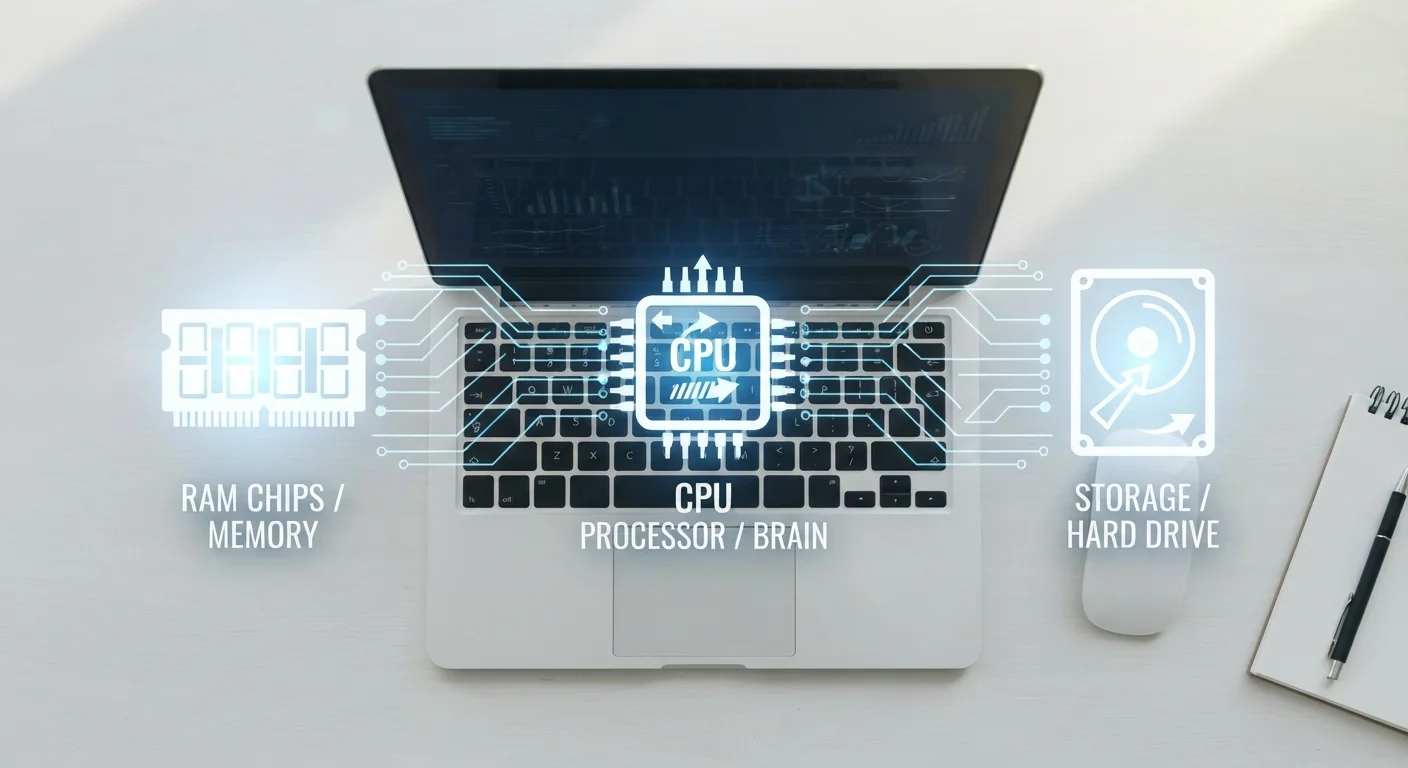
RAM: Your Computer's Active Workspace
RAM stands for Random Access Memory, and it functions like the surface of your desk. When you open a browser, a spreadsheet, or a video call, the data for those active tasks loads into RAM because it can be accessed almost instantly. The more RAM a computer has, the more tasks it can juggle simultaneously without slowing down.
When RAM runs low, the computer begins shuffling data to storage as a substitute - a much slower process. This is what causes that familiar sluggishness when too many browser tabs are open at once.
Match Your Specs to Your Actual Habits
Before evaluating RAM or CPU numbers, list what you actually do on a computer daily. Light users - email, streaming, documents - rarely need more than 8GB of RAM and a mid-range processor. Power users doing creative or technical work benefit more from higher specs. Buying beyond your needs doesn't improve your experience; it just raises cost.
It's worth noting that more RAM doesn't automatically make every task faster. If you're only doing light work - email, basic web browsing, writing - additional RAM beyond what your workload needs provides little measurable benefit. Context matters. For a broader look at how RAM claims can be misleading, see common computer myths explained.
Storage: Where Everything Lives Permanently
Storage is entirely different from RAM. While RAM is temporary, storage is where your operating system, installed applications, documents, photos, and downloads live permanently - whether the computer is on or off.
Storage capacity is measured in gigabytes (GB) or terabytes (TB), and the type of storage matters as much as the amount. Solid-state drives (SSDs) retrieve data far more quickly than older spinning hard disk drives (HDDs), which is why computers with SSDs tend to start up and open apps noticeably faster. For a detailed breakdown of that distinction, see how SSDs and HDDs compare in practice.
8 GB
Minimum RAM for comfortable general use
Industry consensus among PC manufacturers and tech analysts generally places 8GB as the practical baseline for everyday productivity and browsing tasks.
~5-10×
Speed advantage of SSDs over traditional HDDs
Sequential read speeds for modern SSDs commonly range from 500 MB/s to over 3,000 MB/s, compared to typical HDD speeds of 80-160 MB/s.
4-16 cores
Typical CPU core range in consumer laptops
Most consumer-grade laptop processors ship with between 4 and 16 cores, with higher core counts generally benefiting multi-threaded workloads like video editing.
If you use cloud services like Google Drive or iCloud, some of your files may not live on your device at all. Understanding the difference between cloud and local storage can help you manage space more effectively.
Processing Speed: The Engine Behind Every Task
The CPU (Central Processing Unit) is the brain of the computer. Processing speed - typically described in gigahertz (GHz) - measures how many cycles the CPU completes each second. A higher clock speed generally means it can finish individual instructions faster.
Modern CPUs also have multiple cores, which allows them to handle several tasks in parallel rather than sequentially. A quad-core processor running at a moderate GHz can outperform a single-core chip at a higher GHz for many real-world workloads like video editing or multitasking.
“Consumers often fixate on a single spec - usually RAM or GHz - but real-world performance is always the result of how multiple components work together under a specific workload.”
— Consumer Technology Editorial Perspective, Technology hardware analysis, general industry view
Processing speed affects how fluidly your computer responds to everything you do - from loading a webpage to rendering a photo. For consumers who want to decode spec sheet numbers more confidently, this guide to laptop spec sheet terminology explains GHz, cores, and more in plain terms.
How All Three Work Together
These three components aren't independent - they interact constantly. A fast CPU paired with too little RAM will stall while waiting for data. Generous RAM can't compensate for a processor that's too slow to handle demanding software. And even the fastest CPU and RAM combination will feel sluggish if the storage drive takes several seconds to load files.
The practical takeaway: when evaluating a computer, consider all three specs relative to what you actually do. Light everyday users have different needs than video editors or software developers. Identifying your real usage patterns - rather than chasing the highest numbers - leads to better decisions. You can also apply this thinking to smartphones; this guide on smartphone storage needs walks through a similar framework for mobile devices.
Frequently Asked Questions
RAM is temporary working memory - it holds data your computer is actively using right now, and clears when you shut down. Storage is permanent space for your files, photos, and apps that persists between sessions. Think of RAM as your desk surface and storage as your filing cabinet.
Not always. More RAM helps when you're running multiple programs or working with large files simultaneously. However, if your CPU is underpowered or your storage is slow, adding RAM alone won't resolve those bottlenecks. All three components need to be reasonably balanced.
GHz (gigahertz) measures how many processing cycles a CPU completes per second. A higher GHz rating generally means faster individual task execution. However, the number of cores and the efficiency of the chip's architecture often matter as much as raw clock speed.
For general use - browsing, email, streaming, and light productivity - 8GB of RAM is typically sufficient. Users who edit video, run virtual machines, or work in professional creative software generally benefit from 16GB or more.
Yes, significantly. Solid-state drives (SSDs) are much faster than traditional hard disk drives (HDDs), particularly for startup times and opening applications. See our <a href="/tech-devices/computers-laptops/ssd-vs-hdd-the-storage-difference-that-changes-how-a-computer-feels">overview of SSD vs. HDD differences</a> for a deeper look.
It depends on the model. Some laptops allow RAM and storage upgrades, while others - particularly thin and ultraportable designs - solder components to the motherboard, making upgrades impossible. Check the manufacturer's specifications before purchasing if future upgrades matter to you.
The content on this site is for informational purposes only and is not a substitute for professional advice. Always consult a qualified professional for guidance specific to your situation.