

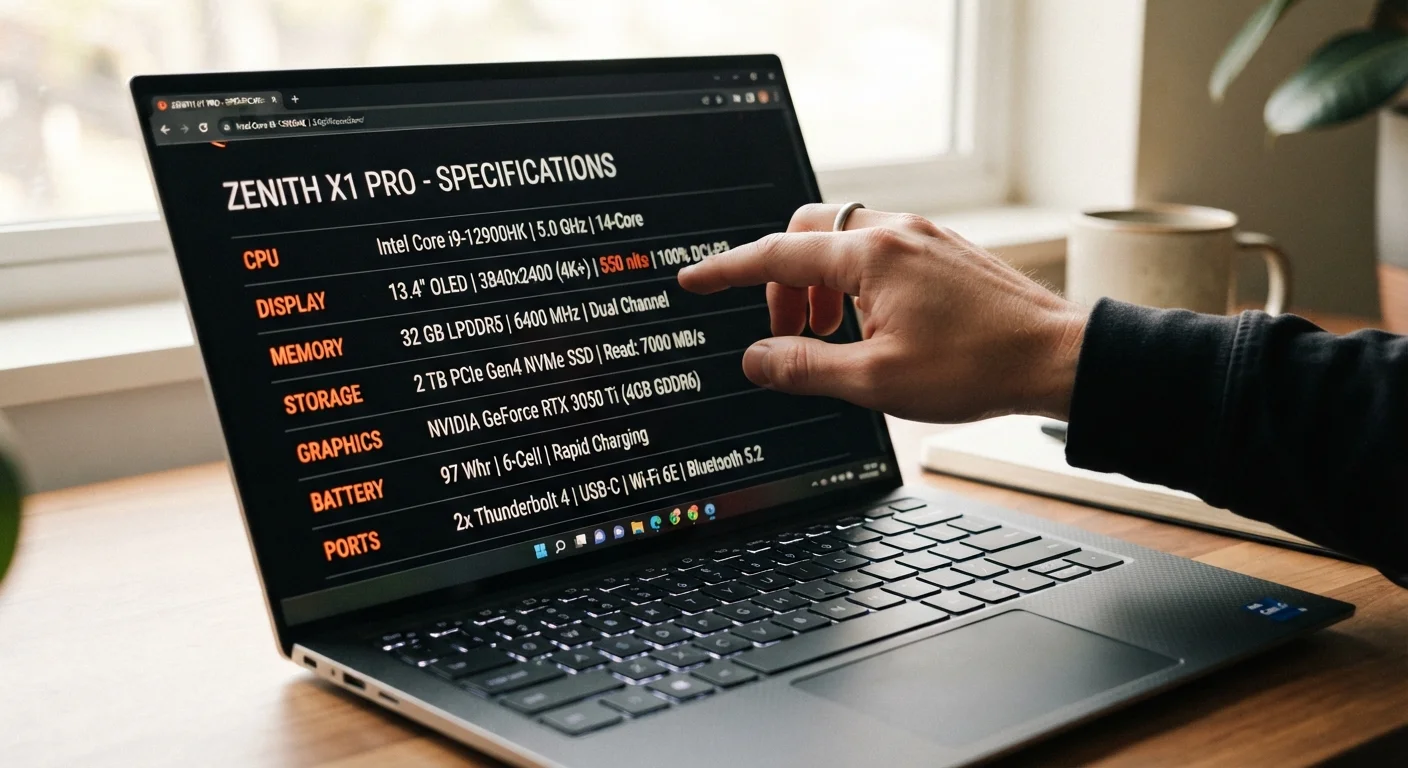
The Processor: GHz, Cores, and TDP
The CPU (central processing unit) is the most complex section of any spec sheet. Three numbers appear most often: clock speed in GHz, core count, and TDP.
GHz describes how fast the processor cycles through instructions. A higher number generally means snappier single-task performance - like opening apps or rendering a single document. But raw GHz is only part of the story. Core count determines how many tasks the chip can handle in parallel. A 4-core processor at 2.5 GHz can outperform a 2-core chip at 3.5 GHz when multitasking or running demanding software.
TDP (Thermal Design Power), listed in watts, signals how performance-focused or efficiency-focused a chip is. Lower-TDP chips (around 9-15W) prioritize battery life; higher-TDP chips (28W and above) favor sustained performance but may run warmer and drain faster. See our plain-English guide to processing speed for more on how CPU specs translate to everyday tasks.
GHz (Gigahertz)
A measure of processor clock speed - how many billions of cycles per second the CPU can execute. Higher GHz can mean faster single-task performance, but core count and architecture also matter significantly.
RAM (Random Access Memory)
Short-term working memory your laptop uses to run active programs. More RAM lets you keep more apps open simultaneously without slowdowns.
Nits
A unit of screen brightness. Higher nit counts make the display easier to see in bright environments like outdoors or near windows.
TDP (Thermal Design Power)
Measured in watts, TDP indicates how much heat a processor generates at maximum load. It's a rough proxy for performance level and battery efficiency.
SSD (Solid-State Drive)
A type of storage that uses flash memory instead of spinning disks. SSDs are significantly faster, quieter, and more durable than older HDD storage.
Refresh Rate (Hz)
How many times per second the display updates the image. A 60 Hz screen refreshes 60 times per second; higher rates like 120 Hz produce smoother motion.
Resolution
The number of pixels on a screen, expressed as width × height (e.g., 1920×1080). Higher resolution means more detail and sharper text at the same screen size.
Core Count
The number of independent processing units inside a CPU. More cores help when running multiple tasks or demanding software simultaneously.
RAM and Storage: Size Isn't Everything
RAM and storage are frequently confused - they do fundamentally different things. RAM is temporary working space; storage is permanent. Think of RAM as your desk surface and storage as a filing cabinet.
For most everyday users - web browsing, streaming, light document work - 8 GB of RAM is a practical minimum. Stepping up to 16 GB gives meaningful headroom for heavier multitasking. Beyond that, the returns diminish quickly for non-specialist use.
For storage, the type matters as much as the size. An SSD at 256 GB will feel dramatically faster than an older HDD (hard disk drive) at 1 TB. If a spec sheet lists both a small SSD and a larger HDD, the SSD is typically where the operating system lives - which is the speed you'll feel most.
| Typical everyday RAM minimum | 8 GB (General industry guidance for mainstream laptop use) |
| Common productivity display resolution | 1920×1080 (Full HD) |
| Outdoor-usable brightness threshold | 300+ nits (General display usability guidance) |
| Standard laptop battery capacity range | 40-100 Wh |
| Common SSD storage starting point | 256 GB |
| Typical mainstream CPU core range | 4-16 cores (Varies by processor generation and tier) |
Display Specs: Resolution, Brightness, and Refresh Rate
Screen specs directly affect how comfortable and capable the laptop feels for daily use, yet they're often skimmed over.
Resolution determines image sharpness. Full HD (1920×1080) is the common baseline; QHD (2560×1440) and 4K (3840×2160) offer more detail, especially on larger screens. However, higher resolution draws more power, which can shorten battery life.
Brightness in nits affects usability in real environments. A screen around 250 nits works fine indoors; anything under 300 nits may wash out near a sunny window. Screens rated 400+ nits hold up well in most lighting conditions.
Refresh rate - measured in Hz - determines motion smoothness. For document work and video calls, 60 Hz is perfectly adequate. Faster rates like 90 Hz or 120 Hz make scrolling and animation visibly smoother, which some users find reduces eye fatigue over long sessions.
Specs Don't Tell the Whole Story
Two laptops with identical spec numbers can perform differently in real-world use due to cooling design, software optimization, and build quality. Spec sheets are a useful starting framework, not a definitive performance guarantee. Reading independent reviews that test under real workloads adds important context that numbers alone can't provide.
Battery Capacity and What Wh Actually Predicts
Battery specs list capacity in watt-hours (Wh) - the total energy the battery can store. A higher Wh figure means more potential runtime, but actual battery life depends heavily on what the processor draws and how bright the screen runs.
A 72 Wh battery in an efficiency-focused laptop may outlast a 90 Wh battery in a high-performance machine. Manufacturer runtime claims are typically measured under light conditions (low brightness, minimal processing load), so real-world results often fall shorter. Treat published battery life figures as optimistic ceilings rather than reliable daily averages.
For a broader look at how these specs translate across different device types, our desktop vs. laptop comparison explores how portability and power trade off in practice. And if you want to understand the physical connections your laptop offers, see our port reference guide.
300+ nits
Minimum brightness for comfortable outdoor viewing
Display engineers and reviewers commonly cite 300 nits as the practical threshold for usability in bright ambient light.
8 GB
RAM widely considered the everyday usability floor
Most mainstream operating systems and productivity suites run acceptably on 8 GB RAM for typical web, email, and document tasks.
60 Hz vs. 120 Hz
Refresh rate difference most users notice
Motion smoothness becomes perceptibly different to most users when comparing 60 Hz and 120 Hz displays, especially during scrolling.
The content on this site is for informational purposes only and is not a substitute for professional advice. Always consult a qualified professional for guidance specific to your situation.