

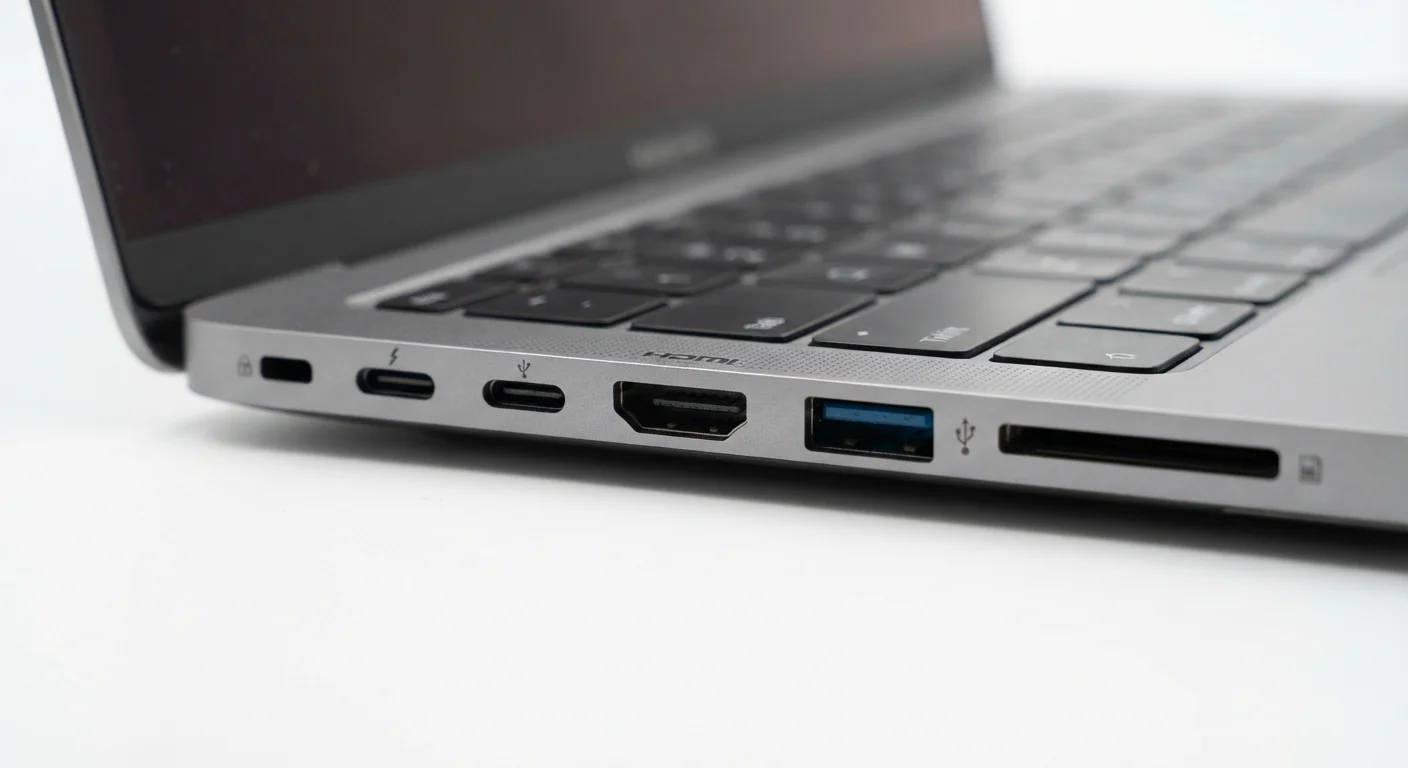
A Quick Map of Common Laptop Ports
Flip your laptop on its side and you'll likely spot a row of openings of different shapes and sizes. Each port is designed to accept specific connector types and serve specific functions. Understanding what each one does - before you need it - saves frustration when you're trying to connect a monitor, transfer photos, or charge a device on the road.
| Most common port type | USB-A (rectangular) |
| Multi-function port standard | USB-C (oval connector) |
| Video output options | HDMI, DisplayPort, USB-C (with video support), Thunderbolt |
| Fastest data transfer port | Thunderbolt 4 (up to 40 Gbps) |
| Audio connection | 3.5mm audio jack (may be combo headset jack) |
| Wired internet port | Ethernet / RJ-45 (absent on many slim laptops) |
| Photo import port | SD or microSD card slot |
| Thunderbolt visual indicator | Lightning bolt icon next to the port |
Not every laptop includes every port type. Thinner, lighter machines often trim the list to save space, which is one of the real trade-offs explored in our piece on choosing between a desktop and a laptop.
Port-by-Port Breakdown
USB (Universal Serial Bus)
A family of connector standards used to link peripherals - drives, mice, keyboards, chargers - to a computer. USB generations (2.0, 3.0, 3.2, 4) differ in data transfer speed.
Thunderbolt
A high-speed port protocol developed by Intel, using the USB-C physical shape. It supports faster data transfer, video output, and daisy-chaining multiple devices than standard USB-C alone.
HDMI
High-Definition Multimedia Interface. A port and cable standard that carries both video and audio to external displays like monitors, TVs, and projectors.
DisplayPort
A video output standard often found on professional and gaming-oriented laptops. It supports high resolutions and refresh rates and is common on external monitors.
SD Card Slot
A built-in reader for Secure Digital memory cards used in digital cameras and other devices. Allows direct file transfer without a separate adapter.
Ethernet (RJ-45)
A port that accepts a standard network cable for a direct, wired internet connection. Wired connections are typically faster and more reliable than Wi-Fi.
USB-A
The rectangular port most people picture when they hear "USB." It accepts standard USB flash drives, wired mice, keyboards, phone charging cables (with the right adapter), and countless other peripherals. USB-A ports come in different speed generations - USB 3.0 and above transfer files significantly faster than older USB 2.0 ports, though they look nearly identical. Look for a blue tab inside the port as a quick visual indicator of USB 3.0 or faster.
USB-C
The small, oval-shaped port that has become the modern standard across laptops, tablets, and smartphones. A single USB-C port can carry power (charging), data, and even video signals simultaneously - but its actual capabilities depend on the version of the underlying standard the laptop supports. Some USB-C ports only handle data and power; others support video output or the Thunderbolt protocol. Check your laptop's documentation to know what each USB-C port can do.
Thunderbolt (3 and 4)
Thunderbolt uses the same physical USB-C connector but offers significantly higher data transfer speeds and additional features - including the ability to connect external monitors, high-speed storage drives, and even external graphics cards (eGPUs) through a single cable. Thunderbolt ports are usually marked with a lightning bolt icon. If your laptop has Thunderbolt, it can also accept regular USB-C devices; the reverse is not always true.
HDMI
HDMI (High-Definition Multimedia Interface) is the standard port for connecting your laptop to an external display - a TV, monitor, or projector. It carries both video and audio over one cable. Some laptops use a full-size HDMI port; others use a smaller Mini HDMI. HDMI versions (1.4, 2.0, 2.1) determine the maximum resolution and refresh rate you can push to an external screen.
DisplayPort and Mini DisplayPort
DisplayPort is another video output standard, more common on business and creator laptops than consumer models. It supports high resolutions and high refresh rates and is often the connector of choice for professional monitors. Mini DisplayPort is a smaller version carrying the same signal.
SD Card Slot
A slot sized for SD (Secure Digital) memory cards, used most often to import photos and videos directly from a digital camera. Some laptops include a full-size SD slot; others offer a microSD slot, which accepts the smaller cards commonly found in smartphones and action cameras. If your laptop has neither, a USB card reader adapter can fill the gap.
3.5mm Audio Jack
The round port that accepts standard headphone and microphone plugs. Many laptops include a combo jack that handles both headphones and a microphone through a single port (look for headset-style wired earbuds with a single plug). Some thin laptops have removed this port entirely, requiring a USB-C or Bluetooth headset instead.
Ethernet (RJ-45)
A wider, rectangular port for a wired network cable. Wired Ethernet connections are generally faster and more stable than Wi-Fi - useful for video calls, large file transfers, or gaming. Many slim laptops omit this port, relying on a USB-C-to-Ethernet adapter for wired connections when needed.
Adapters Can Bridge the Gap
If your laptop is missing a port you need - such as USB-A, Ethernet, or HDMI - a USB-C hub or docking station can add several ports through a single connection. Look for a hub that explicitly lists the ports you need and confirms compatibility with your laptop's USB-C or Thunderbolt version. Not all hubs work equally well with all laptops.
When comparing laptops, port selection is one practical detail worth scanning alongside specs like RAM and processor. Our guide to reading a laptop spec sheet explains how to interpret those numbers in context.
The content on this site is for informational purposes only and is not a substitute for professional advice. Always consult a qualified professional for guidance specific to your situation.