

Our Verdict
Upgrading makes financial sense when one clear bottleneck - typically RAM or storage - is limiting an otherwise capable machine. When the processor is outdated, the operating system is no longer supported, or repair costs approach replacement costs, starting fresh delivers better value and longevity.
Budget-conscious users with a desktop PC that's five years old or younger and experiencing specific, diagnosable slowdowns rather than broad, across-the-board decline.
Why This Decision Is Harder Than It Looks
A slow or struggling computer puts you at a crossroads: spend money on upgrades, or put that money toward something new? Neither answer is universally right. The decision hinges on understanding what is actually limiting your machine and whether that bottleneck is addressable without rebuilding from scratch.
Before assuming the worst, it helps to understand what's actually causing performance to degrade. Our explainer on why computers slow down over time walks through the most common culprits - from software bloat to aging storage drives - so you're diagnosing the real problem, not guessing.
Once you have a clearer picture of what's failing, you can weigh an upgrade against replacement with much more confidence.
Desktops vs. Laptops: Upgradeability Varies Significantly
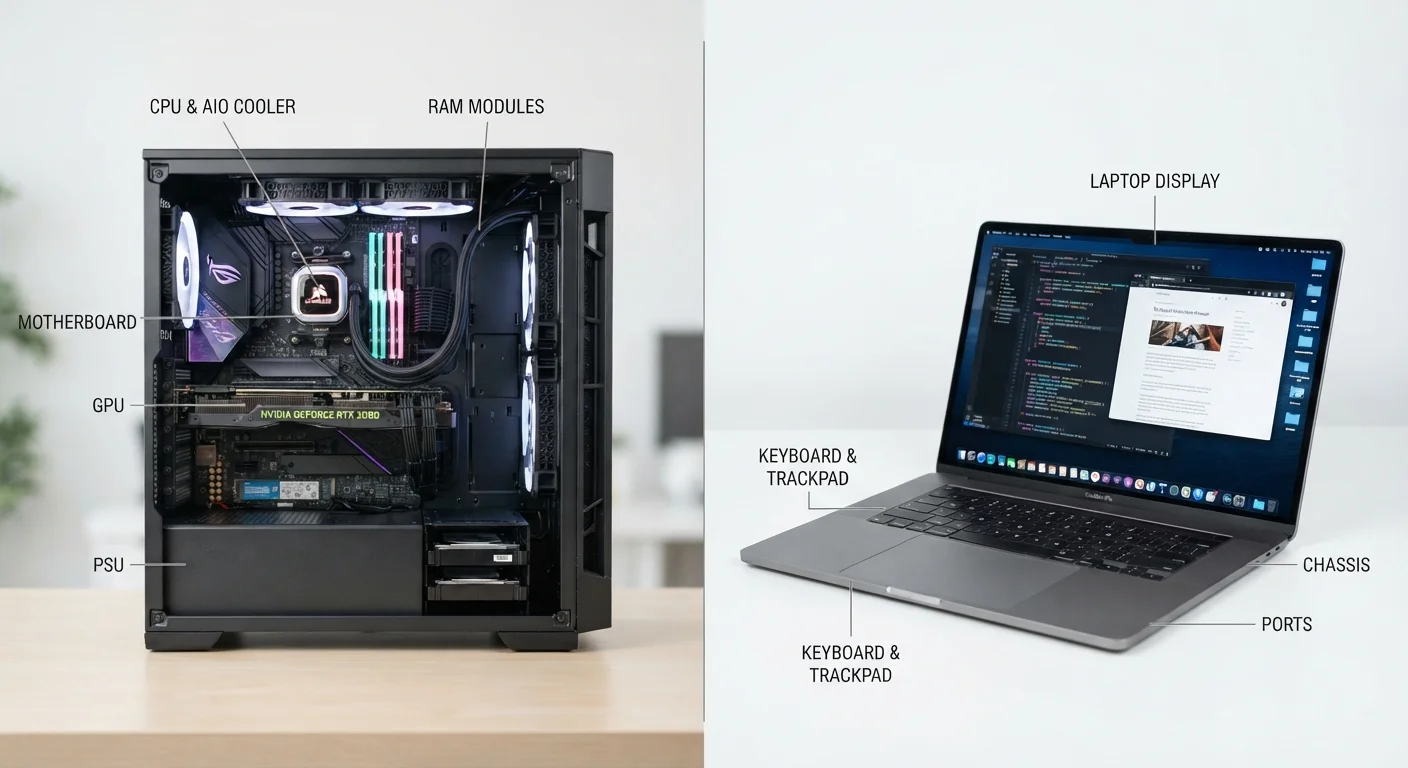
Desktop computers generally offer far more upgrade flexibility than laptops. Most desktops allow you to swap RAM, storage, graphics cards, and even the power supply. Laptops, especially thin and light models, increasingly use components soldered to the motherboard. Before purchasing any upgrade part, confirm compatibility with your specific model using the manufacturer's support page or a reputable hardware compatibility tool.
The Case for Upgrading First
Upgrades are most effective when one specific component is the clear bottleneck and the rest of the system is still capable. The two upgrades that deliver the most noticeable improvements for everyday users are:
- Adding RAM - RAM (random-access memory) is what your computer uses to juggle active tasks. If your machine struggles with multiple browser tabs or freezes during routine work, more RAM often resolves it directly.
- Switching to an SSD - Replacing a traditional spinning hard drive with a solid-state drive (SSD) is one of the highest-impact upgrades available. Boot times, file access, and application loading can improve dramatically.
These upgrades tend to be straightforward on desktop computers and are sometimes possible on older laptops. If you're unsure whether your symptoms point to a hardware limit, recognizing the signs your computer is being pushed past its limits can help clarify the picture.
Lower upfront cost than buying a new machine
Targeted component upgrades - especially RAM and SSD swaps - typically cost a fraction of a replacement computer, making them attractive when budget is a constraint.
Extends useful life of familiar hardware
If you're comfortable with your current setup and it meets most of your needs, upgrading avoids the disruption of learning a new system and migrating files.
Reduces electronic waste
Extending a computer's lifespan through upgrades keeps functional hardware out of landfills, which has meaningful environmental benefits given the materials in electronics.
Can solve a specific, diagnosable problem precisely
When the bottleneck is clearly identified - for example, low RAM causing browser tab crashes - an upgrade addresses the root cause directly without over-spending.
When Replacement Makes More Sense
There's a point where upgrading stops being practical - usually when the core architecture of the machine is simply too old to keep pace with modern software demands. Key indicators that replacement is the wiser path include:
- The processor is aging out - RAM and storage upgrades can't compensate for a CPU (central processing unit, the main computational chip) that lacks the instruction sets modern software relies on.
- Operating system support has ended - When a machine can no longer receive security updates from its OS (operating system), continued use carries real risk. Newer operating systems often require hardware capabilities older chips don't have.
- Repair costs are climbing toward replacement cost - A commonly cited rule of thumb: if a repair costs more than 50% of what a comparable replacement would cost, replacement often wins on value.
- It's a laptop with limited upgradeability - Many modern laptops have RAM and storage soldered directly to the motherboard, making upgrades impossible. Check your specific model before assuming components can be swapped.
Choosing between a desktop and a laptop for your next machine also plays into long-term upgradeability. Our guide on desktop vs. laptop trade-offs covers how form factor affects your ability to upgrade down the road.
Upgrade options are limited on many modern laptops
Manufacturers increasingly solder RAM and storage onto the motherboard to reduce size and weight, making user upgrades impossible on a large share of current laptop models.
Doesn't address an aging or incompatible processor
RAM and storage upgrades can't compensate for a CPU that lacks support for modern instruction sets or is simply too slow to handle current software demands.
Cumulative upgrade costs can rival replacement cost
If multiple components need attention over a short window, the combined expense can approach or exceed what a comparable new or refurbished machine would cost.
An upgraded old machine still has a finite remaining lifespan
Putting money into a machine that's already seven or more years old may delay the inevitable by only a year or two, making the investment harder to justify.
What to Do Once You've Decided
If you've decided to replace your computer, two practical tasks are worth completing before the old machine leaves your hands. First, back up or transfer everything you need. Second, wipe your personal data and deauthorize any accounts. Our checklist on what to do before selling or giving away a computer covers this process step by step.
Once your new machine arrives, setting it up cleanly from the start prevents the clutter and performance drag that often builds up when setup is rushed.
If you're upgrading instead, document what you changed and when. Knowing your upgrade history helps you make better decisions the next time performance starts to slip - and gives you a realistic picture of how much life the machine still has left.
~5 years
Average practical lifespan of a consumer PC
Industry analysts and repair professionals commonly cite five years as the threshold after which upgrade economics start to favor replacement for most users.
50%
Repair-to-replacement cost rule of thumb
A widely referenced consumer electronics guideline suggests that repair or upgrade costs exceeding 50% of comparable replacement cost typically favor buying new.
The content on this site is for informational purposes only and is not a substitute for professional advice. Always consult a qualified professional for guidance specific to your situation.