

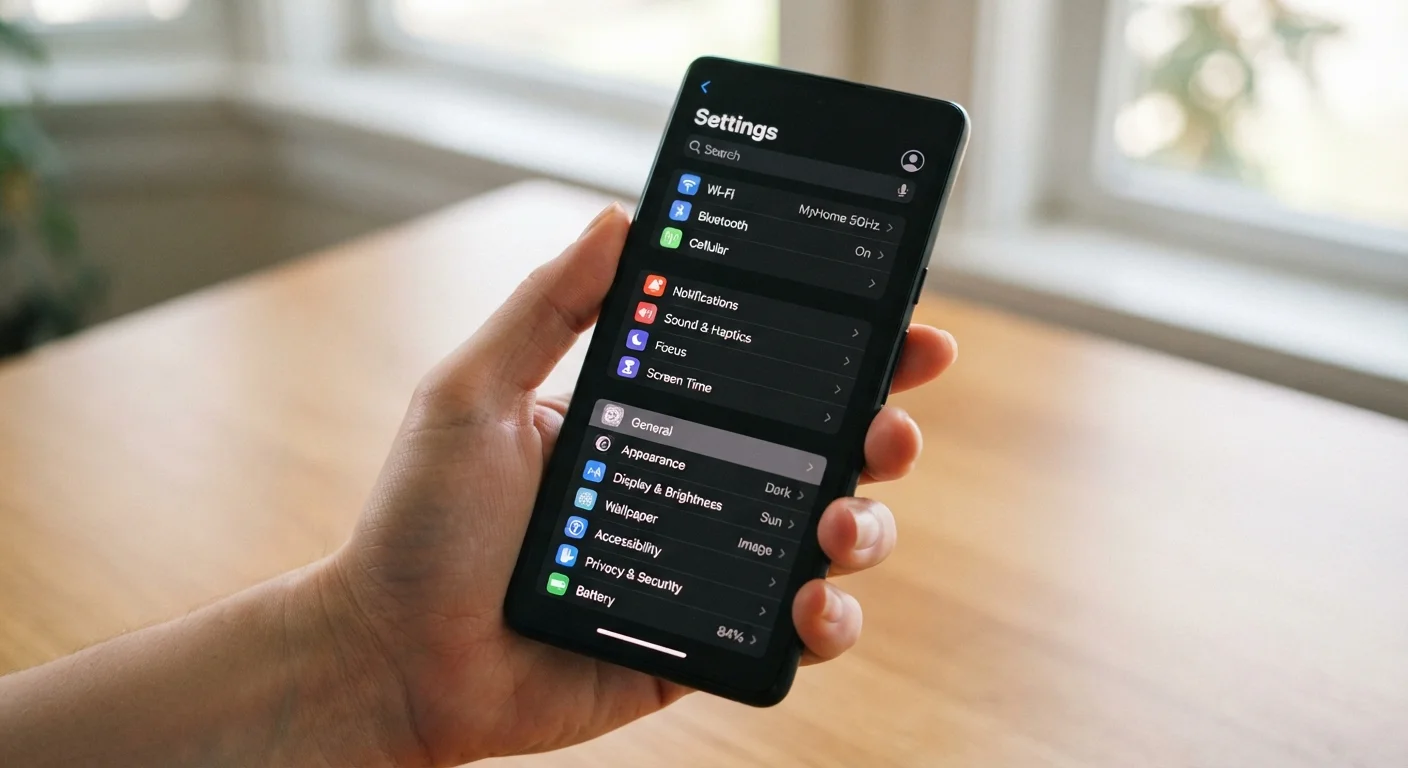
Why Default Settings Aren't Always Working in Your Favor
When you take a new phone out of the box, every setting is configured by the manufacturer or carrier - optimized partly for a smooth first impression, and partly for ecosystem engagement. That means some defaults quietly work against your interests: draining the battery faster, sharing more location data than necessary, and letting apps run unchecked in the background.
The good news is that most of these settings are easy to find and take under a minute to change. You don't need a technical background - just a general sense of where to look and why it matters. The list below covers the settings worth revisiting, regardless of whether you're on Android or iOS. Exact menu names vary by device and operating system version, but the underlying options exist on virtually every modern smartphone.
Start With the Settings App, Not a Third-Party Tool
You don't need to download a separate app to audit your phone's settings. Everything covered in this article lives in the built-in Settings app on both Android and iOS. Be cautious of apps that claim to "optimize" your phone - the built-in tools are sufficient, and third-party optimizers sometimes request the very permissions you're trying to limit.
Settings Worth Changing Today
App permissions - especially location access
Most apps request location access during setup, and most users tap "Allow" without a second thought. The problem is that many apps don't need your location at all times - or ever. A flashlight app has no legitimate reason to know where you are.
On both Android and iOS, you can review every app's location setting individually. Look for options like "Only while using the app" or "Never" for apps that don't have a clear location-based function. While you're in the permissions screen, check microphone and camera access too - these are worth auditing with the same critical eye.
Many apps hold location access they were granted at install and have never actually needed.
Background app refresh
Background app refresh allows apps to fetch new content - news headlines, social feeds, email - even when you're not actively using them. It's convenient, but it's also a steady drain on both battery and mobile data.
Most users don't need every app refreshing constantly in the background. Limiting this to apps you genuinely want updated in real time (messaging, calendar) and disabling it for everything else is a practical way to reclaim battery hours without noticing any difference in day-to-day use. On iOS this is under General settings; on Android it's typically found under battery or data settings per app.
Disabling background refresh for low-priority apps can noticeably extend how long your battery lasts through a day.
Adaptive battery or battery optimization
Both Android and iOS include intelligent battery management features that learn which apps you use regularly and restrict power to apps sitting idle. On Android, this appears as "Adaptive Battery" or "Battery Optimization." On iOS, "Optimized Battery Charging" is a related - though distinct - feature that manages charge cycles.
These are usually enabled by default, but it's worth confirming they're on. Some third-party apps prompt users to disable optimization during setup (to ensure notifications arrive quickly), which can leave your phone working harder than necessary. For a deeper look at what affects battery health over time, why phone batteries degrade and what slows it down is worth reading.
Battery optimization features work best when they're actually enabled - and some apps quietly ask you to turn them off.
Ad tracking and personalized advertising identifiers
Every smartphone has a resettable advertising identifier - a code that lets apps and advertisers track your behavior across different apps to build a profile for targeted ads. On iOS, you're prompted to allow or deny this per app (the App Tracking Transparency prompt). On Android, you can reset or delete your advertising ID in the Privacy settings.
Limiting ad tracking doesn't make ads disappear, but it does reduce the depth of the behavioral profile that's being built around your usage. It's one of the more meaningful privacy levers available to the average user, and it takes about 30 seconds to adjust.
Resetting or opting out of your ad identifier is one of the fastest meaningful privacy changes you can make.
Notification access for third-party apps
Some apps - particularly utilities, launchers, and smart home apps - request permission to read your notifications. This can enable genuinely useful features, but it also means those apps can see the content of messages, alerts, and other private information appearing on your screen.
Check which apps have notification access (sometimes listed under "Special app access" on Android or "Focus" and notification settings on iOS) and revoke it for anything that doesn't have a clear, specific need. Most users who audit this setting find apps holding access they don't recognize or no longer use.
Apps with notification access can read the content of your messages and alerts - worth auditing regularly.
Screen timeout and display brightness
A screen that stays on for two or three minutes after you set the phone down is burning battery continuously. Most default timeout settings are longer than necessary for everyday use. Shortening the screen timeout to 30-60 seconds is a simple change that compounds meaningfully across a full day of use.
Separately, if your phone has an adaptive or auto-brightness feature, verify it's enabled. Screens are among the biggest power draws on a smartphone, and letting the sensor automatically dim in low-light conditions - rather than running at full brightness all the time - makes a genuine difference. This pairs well with the broader habits discussed in common smartphone myths worth revisiting.
A shorter screen timeout is one of the simplest changes with a noticeable impact on daily battery life.
Settings Menus Vary by Device and OS Version
The exact names and locations of these settings differ between Android manufacturers (Samsung, Google, OnePlus, etc.) and across iOS versions. If you can't find a setting by the name used here, searching within the Settings app's built-in search bar is the fastest way to locate it. The underlying options described in this article are available on virtually all modern smartphones.
Once you've worked through these settings, it's worth building a light review habit - revisiting permissions and battery data every few months, especially after installing new apps. For a broader look at how everyday choices affect your device long-term, see how common habits shorten a smartphone's lifespan. And if you want to go deeper on security specifically, which smartphone security habits genuinely reduce risk is a grounded companion read.
The content on this site is for informational purposes only and is not a substitute for professional advice. Always consult a qualified professional for guidance specific to your situation.