

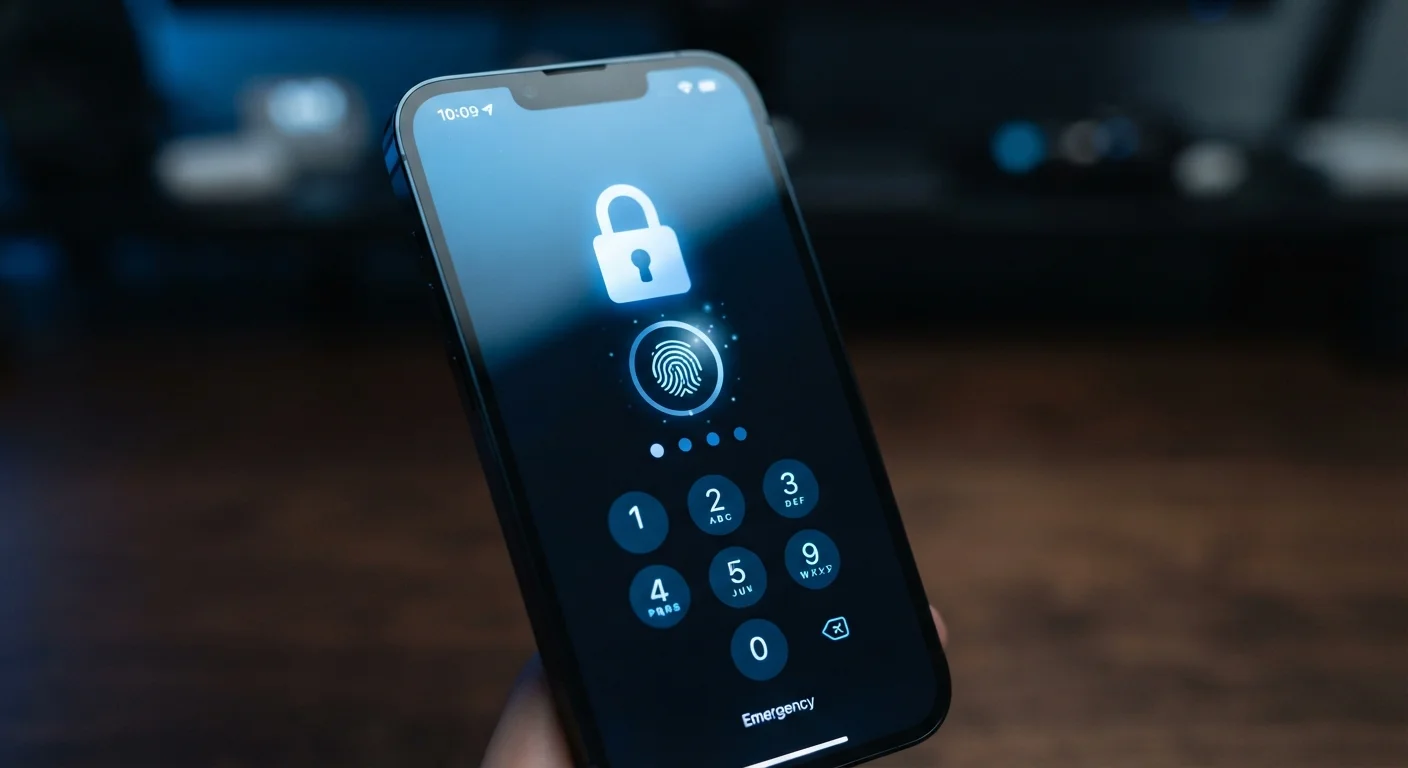
Why Phone Security Is More Than a Lock Screen
Most people think of smartphone security as the moment they unlock their phone - a fingerprint scan, a face glance, a PIN. But that's only the first door. The data on a modern smartphone includes banking apps, medical records, private messages, and login credentials for dozens of accounts. Protecting all of that requires habits that go deeper than the lock screen.
The good news: the practices that actually reduce risk aren't complicated. They're mostly a matter of knowing which settings and behaviors matter and which are closer to security theater. Our guide to commonly overlooked phone settings is a useful companion here - several of those defaults directly affect your privacy.
The Security Practices That Genuinely Matter
Below are the habits that security researchers and platform providers consistently identify as high-impact. These aren't exhaustive, but they address the most common real-world attack surfaces.
Keep your operating system and apps updated promptly.
Security updates patch specific, documented vulnerabilities that attackers actively exploit. Delaying updates - even by a few weeks - keeps your phone exposed to threats that have already been publicly disclosed. This is consistently cited as one of the highest-impact security behaviors.
Use a strong passcode, not just biometrics.
Fingerprint and face recognition are convenient but can be compelled (physically or legally) in ways a memorized PIN cannot. A six-digit PIN is significantly stronger than a four-digit one, and an alphanumeric passphrase is stronger still. Biometrics work well as a convenience layer on top of a solid passcode.
Audit app permissions every few months.
Apps frequently request more access than they need, and permissions granted during initial setup are rarely reviewed again. Location, microphone, and contact access in particular can expose sensitive information if an app is poorly secured or behaves unexpectedly.
Enable two-factor authentication on key accounts.
If an attacker gets your email or banking password - through a data breach or phishing - 2FA is often the only thing standing between them and full access. It protects your accounts independently of your phone's lock screen.
Be selective about public Wi-Fi use.
Unencrypted or poorly secured public networks allow traffic interception. While HTTPS has made browsing safer in general, connecting to unfamiliar networks without a VPN (virtual private network - software that encrypts your internet traffic) still carries meaningful risk, especially for sensitive tasks.
Enable remote wipe and device tracking.
If your phone is lost or stolen, the ability to remotely erase it prevents unauthorized access to everything stored on it. Both major mobile platforms offer this feature built in, but it must be enabled and linked to an account before it's needed.
Where Most People Have Gaps
80%+
Data breaches involving stolen credentials
According to Verizon's Data Breach Investigations Report, the majority of breaches involve compromised credentials - underscoring why account-level security matters beyond device settings.
1 in 3
Users who never review app permissions
Consumer surveys by privacy advocacy groups consistently find a significant share of smartphone users have never audited which apps can access their location, microphone, or contacts.
Two areas where consumers frequently underestimate risk are app permissions and account-level security. Many users grant permissions once during app setup and never revisit them. Over time, apps accumulate access to your location, microphone, contacts, and camera - often well beyond what they need to function.
Account security is the other overlooked layer. If someone gains access to your email or phone number, they may be able to bypass your phone's lock screen entirely through account recovery flows. This is why two-factor authentication (2FA) - where a second verification step is required to log in - is so important. Use an authenticator app rather than SMS-based codes when possible, since SMS can be intercepted through a technique called SIM swapping.
Authenticator Apps vs. SMS Codes
When setting up two-factor authentication, choose an authenticator app over SMS text codes whenever the service allows it. SMS codes can be intercepted if someone transfers your phone number to a new SIM - a known fraud technique called SIM swapping. Authenticator apps generate codes locally on your device, making them harder to intercept remotely.
Travelers face heightened exposure. Connecting to unfamiliar networks, crossing borders with unlocked devices, and using airport charging stations all introduce risk. For broader context, see our article on staying safe while traveling abroad.
Quick Wins You Can Do Right Now
Security doesn't require a complete overhaul. A few targeted actions can close the most common vulnerabilities in under ten minutes.
The content on this site is for informational purposes only and is not a substitute for professional advice. Always consult a qualified professional for guidance specific to your situation.